 KanLab
Session
How Session mode in KanLab plays a kit of pads, what each pad setting does, and how to record, export and share a kit.
Basics
Kits
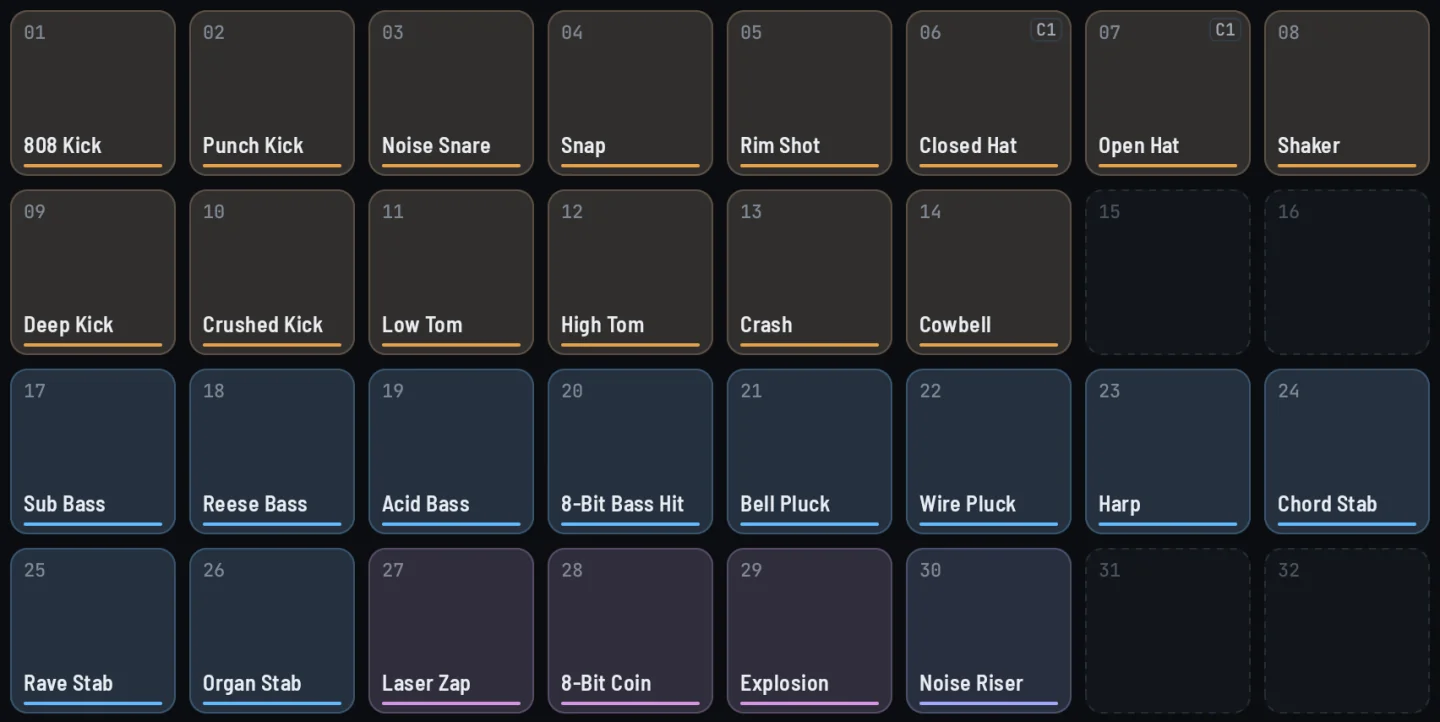
A session plays a kit, a grid of pads, 4x4, 4x8 or 8x8. Each pad plays one sound from your library at its own note, level and position.
Playing the grid
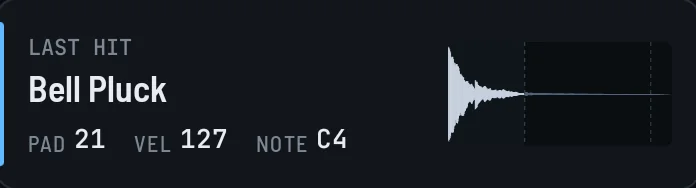
Out of editing, the grid plays. Tap a pad or play it from a MIDI controller, and the lights and LAST HIT show each hit.
Editing

Tap EDIT (the pen on phones) to arrange the kit. Tap a pad to give it a sound, drag one pad onto another to swap them, and hold a pad for its settings.
Pages on phones
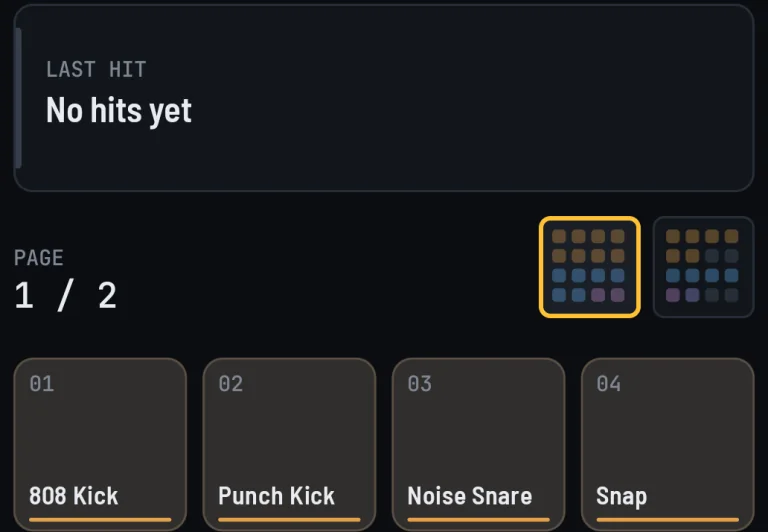
Phones show the grid one 4x4 page at a time. The page tiles beside LAST HIT switch pages, and a pad dragged to the screen edge turns the page.
Pads
Note
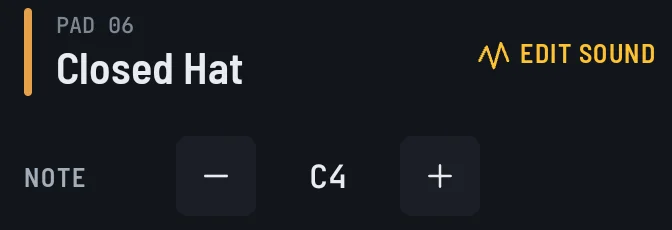
The pitch the pad plays its sound at, C4 unless you change it. A new note renders the pad again.
Gain

The pad's level, up to +6 dB. It applies as the pad plays, so changing it never renders the pad again.
Pan

Where the pad sits between left and right. It applies as the pad plays.
Choke

Pads in the same choke group cut each other off. Hitting one fades the others in its group out in 4 ms. Put an open and a closed hi-hat in one group and the closed hat stops the open one, like a real hi-hat. There are four groups, or OFF.
MIDI

The controller note that hits the pad. Tap Learn, then play a key or pad on your controller. A note hits one pad only, so learning a note another pad uses moves it to this pad.
Color
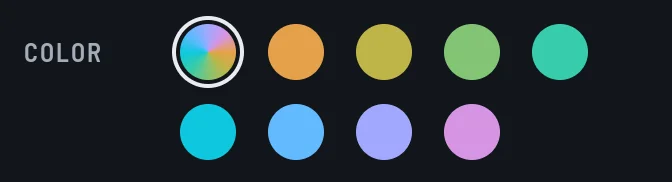
The pad's color on the grid. The first swatch follows the sound's category.
Light
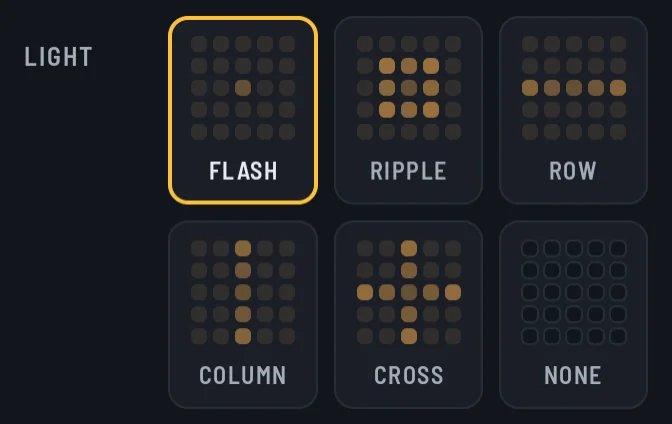
What the grid shows when the pad is hit, brighter and wider the harder you hit. Lights show while LIGHTS is on for the kit.
- FLASH: The pad lights up and fades.
- RIPPLE: A ring spreads out from the pad.
- ROW: The light runs along the pad's row.
- COLUMN: The light runs along the pad's column.
- CROSS: The light runs along the pad's row and column.
- NONE: The grid stays dark.
Playing
MIDI layout

A new kit maps notes the way MPC-style pad controllers send them. Each 4x4 page runs up from C2 (note 36) at its bottom-left pad, row by row, and the next page carries on 16 notes higher. Resizing or moving pads keeps their notes, so a controller still plays the same sounds.
Your own layout

Any pad can answer to any note. Open a pad's settings, tap Learn beside MIDI and play the note. MIDI plays the pads while you edit too, so you can hear a pad without leaving editing.
Touch
With TOUCH DYNAMICS on in Settings, where you strike a pad sets how hard the hit is, hardest in the center. Sliding a held finger changes its pressure. A sound responds when its mod matrix routes VELOCITY or AFTERTOUCH. MIDI controllers send their own velocity and pressure.
Voices
A pad that sounds the same on every hit is rendered once and plays that render, which costs almost nothing. A pad that changes from hit to hit plays live on one of 8 voices. That is a pad that routes VELOCITY, AFTERTOUCH, MOD WHEEL or a free-running LFO, or draws a new random value each hit. The VOICES meter counts the live ones, and when all 8 are busy the pad hit longest ago gives way.
Bend and sustain
A rendered pad plays the same render every time, so pitch bend and the sustain pedal leave it alone, and a held pad still plays the whole sound. A live pad follows bend and sustain the way Wave does.
Loops
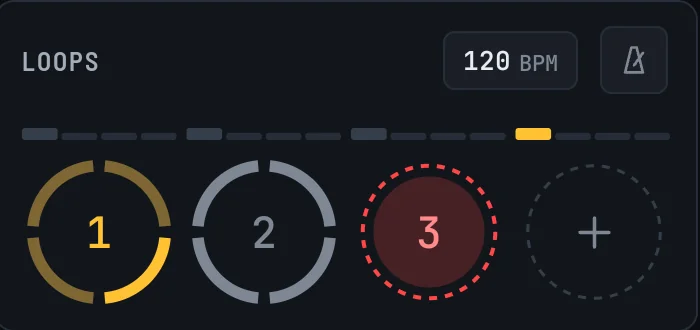
Tap an empty loop slot to arm it, and your first hit starts the recording on its bar. The slot pulses on each beat, and the metronome button beside BPM adds a click. Tap the slot again to finish, or it finishes itself after four bars. The loop keeps the bars you played in, rounded to 1, 2 or 4, and plays on from the next bar.
Tap a loop to start or stop it on the next bar. It comes in on the bar that lines up with the other loops, so loops of different lengths stay together. Drag a loop onto another to merge them, and the shorter one repeats to fill the longer. Drag it onto an empty slot to move it. Hold a loop to clear it, with Undo.
Hits land on 16th notes. Set the tempo with the BPM button. The first slot comes with KanLab, and KanLab Performance opens all four.
Share
Takes

The record button captures what you play as a take, with the audio and the MIDI, one note per pad. A take keeps the pads as they were when it started, so later edits to the kit leave it as recorded. TAKES lists the session's takes.
Exporting a take as WAV with a MIDI file needs KanLab Performance.
Export your kit as WAV files with an SFZ map

Export WAV files in the session menu writes every pad as a WAV file, with an SFZ map and a JSON file that samplers and game engines can read, and keeps a copy in your takes folder when you have one. It comes with KanLab Performance.
Kit file
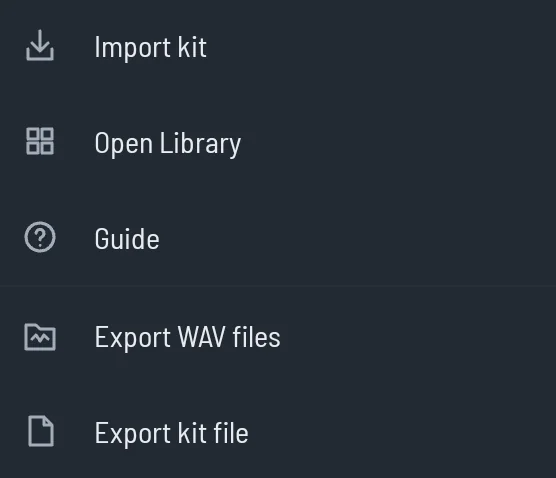
Export kit file saves the kit and every sound its pads use in one file, to open on another device with Import kit. Kit files are free, and importing one reuses sounds you already have.
Size and sessions
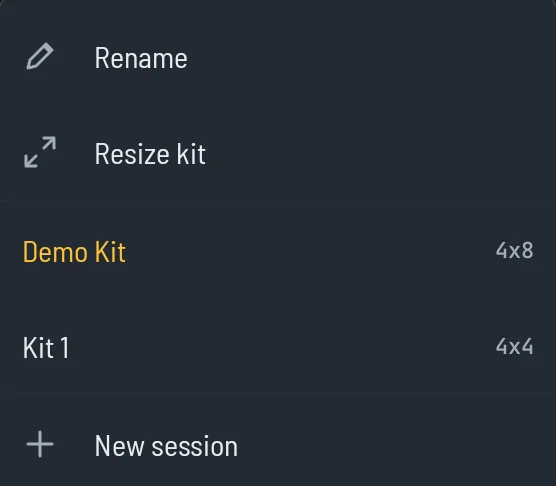
One session with a kit of up to 16 pads comes with KanLab. KanLab Performance adds as many sessions as you like, with kits up to 8x8. Resize the kit from the menu under the session name. Pads keep their place, and a smaller size removes the pads outside it, with Undo.